How Kapture works
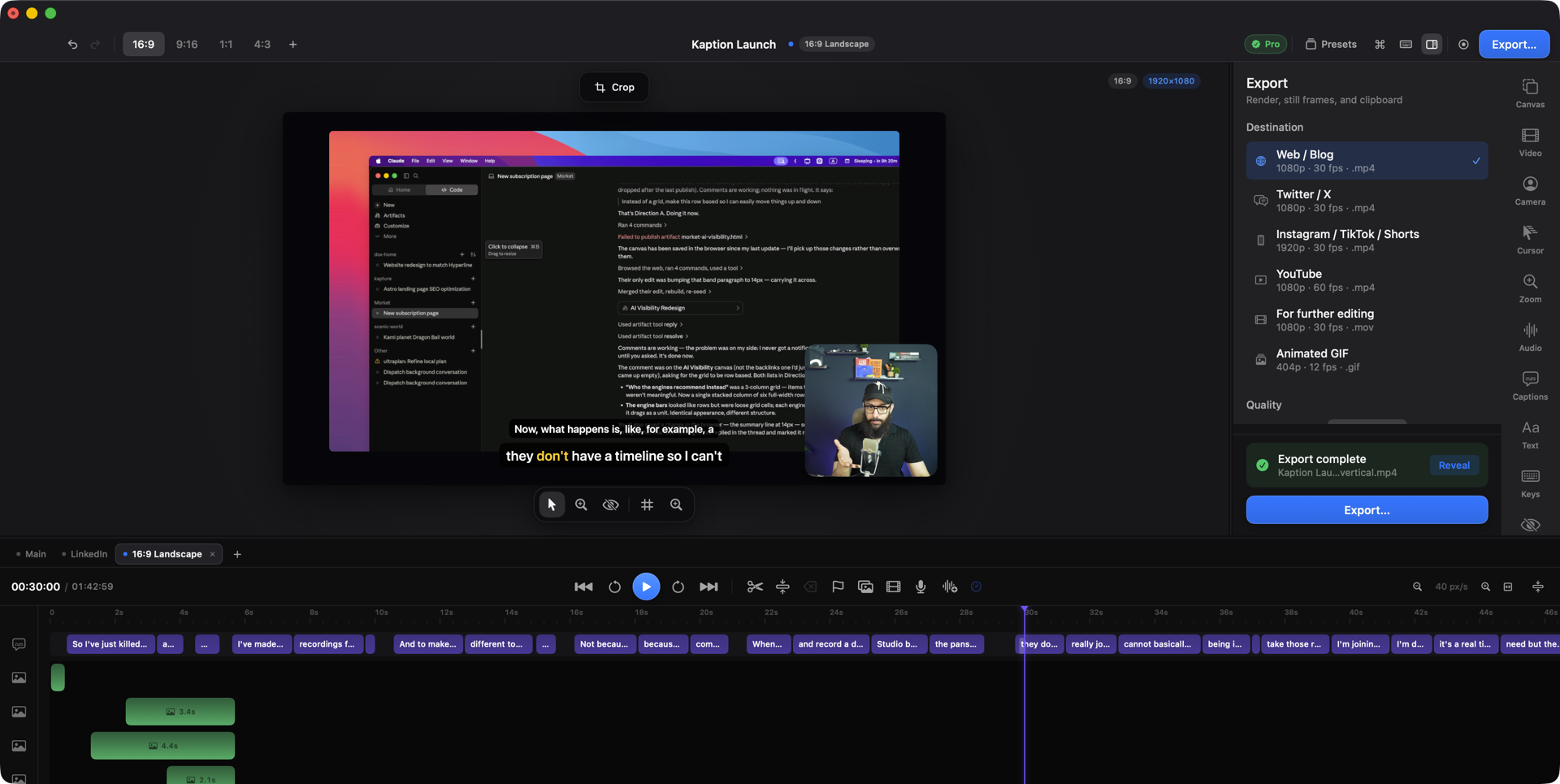
Kapture records your Mac — screen, camera, microphone and system audio — and then edits the recording with you: automatic zooms built from what you actually did, on-device captions, a camera bubble, crops, intros, and export to MP4, ProRes or GIF. It can also hand the controls to an AI agent over MCP, so an assistant can cut your video while you talk to it.
Install & first recording From download to your first finished clip.
A tour of the editor What every panel is, and the keys that drive it.
The timeline Select, move, trim, split — the editing core.
Editing with AI agents Connect Claude or any MCP client to your editor.
How this help is organised
Section titled “How this help is organised”- Recording — capture sources, permissions, and appending extra takes.
- Editing — one page per tool: zooms, captions, camera, cursor, crops, overlays, intros, titles, masks.
- Canvas & formats — aspect ratios, backgrounds, and cutting the same recording for several platforms at once.
- Audio — levels, muting, ducking and narration.
- Export — presets, quality, GIFs and still frames.
- Automation & MCP — the agent interface and the full tool reference.
- Reference — every keyboard shortcut, and what to do when something misbehaves.
Search works across all of it — press / on any help page.
Elsewhere on the site
Section titled “Elsewhere on the site”- Mac screen recorder — screen, camera, microphone and system audio.
- Automatic zoom — zooms placed from the clicks you recorded.
- Tutorial recordings — a long lesson and a short cut from one take.
- Editing with AI agents — connect Claude Code, Codex or Cursor.
- Screen Studio alternative for Mac — the longer comparison.
- Kapture vs Cap — two indie recorders, side by side.
- Affiliate programme — 30% of the first payment you refer.